Get Your Remote Sites Ready For ALARMS UPLINK Operations
Here is how you can properly upgrade and configure your site to send alarms via satellite links. More details on the operation of the Optima ALARMS UPLINK mode can be found here.
Prerequisites
Supplier
Item
Details
Optima
Satellite Modem
Pre-loaded with Optima ALARMS UPLINK application
Optima
SM Mounting Bracket
For pole mounting, includes SatModem mounting hardware
Optima
SM Interface Cable
Cat5e, UTP, solid, UV/direct burial, outdoor
Optima
24VDC Surge Protector
Install where the outdoor cable enters the shelter
Optima
T:LAN RTU
W/ MODBUS, pre-loaded with BN7626 (or higher)
various
Cat5e Cable
To connect the T:LAN to the surge protector
ORBCOMM
Monthly Data Plan
Subscription for modem (from satellite link provider)
Optional
Supplier
Item
Details
Optima
SM AC Power Adapter
Input: 120-240V 50/60Hz, 0.8A, Output: 24VDC, 1A
various
120VAC Outlet
To power the AC power adapter
NOTE: The satellite modem may either be powered via the optional 120-240V AC Power Adapter or a 12-24V DC supply.
Prep the Satellite Modem
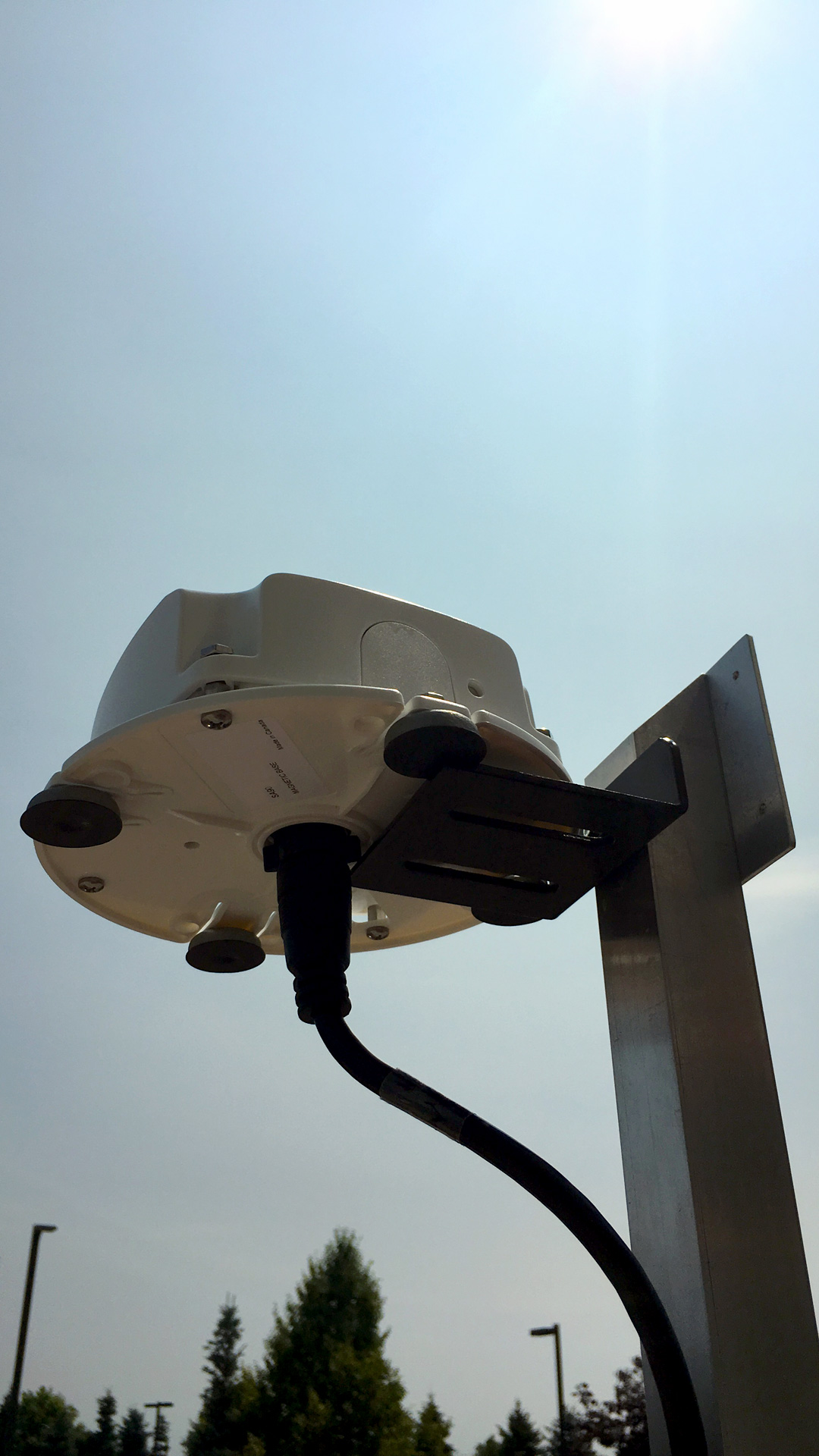
Pole Mounting. For illustration purposes only. Optima SM Mounting Bracket does not require use of magnetic base.
Affix the satellite modem to the mounting bracket, using the supplied hardware.
Mount the bracket to a pole.
NOTE: The modem requires an unobstructed view of the sky. Do not mount indoors. Do not install close to tall buildings, structures or trees. Use supplied bracket. Mount level. Do not affix to walls or under roof overhang.
Securely attach the outdoor cable to the satellite modem.
Run the Cables
Site Wiring Diagram
Run the outdoor cable into the shelter. Terminate at the line side of the surge protector. Requires 2 twisted pairs, one for the RS-485 link, and one for the power. OBSERVE THE POLARITY.
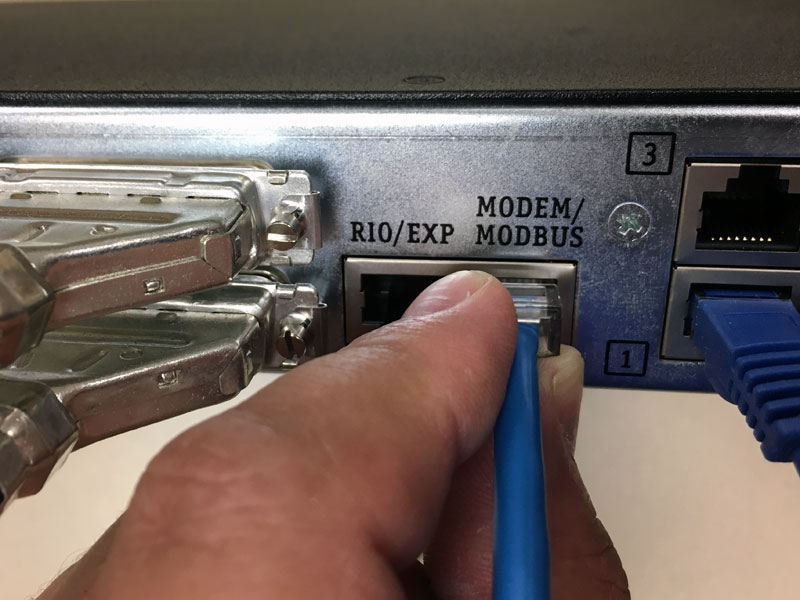
Crimp a RJ-45 nib onto one end of the indoor Cat5e cable. Plug into the selected T:LAN serial port.
Connecting the Satellite Modem.
NOTE: The ALARMS UPLINK mode in the T:LAN lets the user select the serial port to be used for communicating with the satellite modem. Optima recommends the use of the MODBUS (RS-485) port. Option 5 (RS-485) will be pre-selected by default.
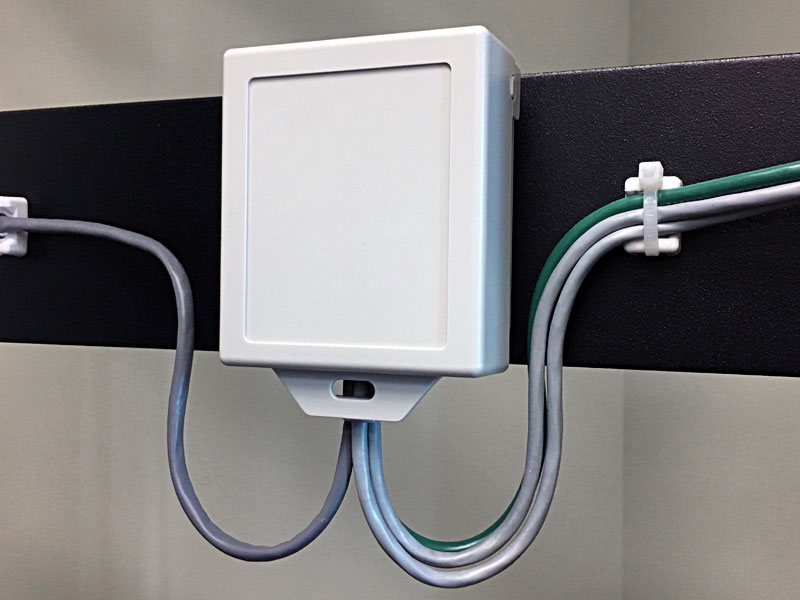
Run the Cat5E cable between the T:LAN and the surge protector. Terminate at the equipment side of the surge protector.
Surge Protector Wiring
Ac Power
Wire in the AC Power supply to the power terminals on the equipment side of the surge protector. OBSERVE THE POLARITY.
Run the power cable to the AC outlet.
IMPORTANT: DO NOT PLUG the AC Power Adapter into an AC outlet yet.
Dc Power
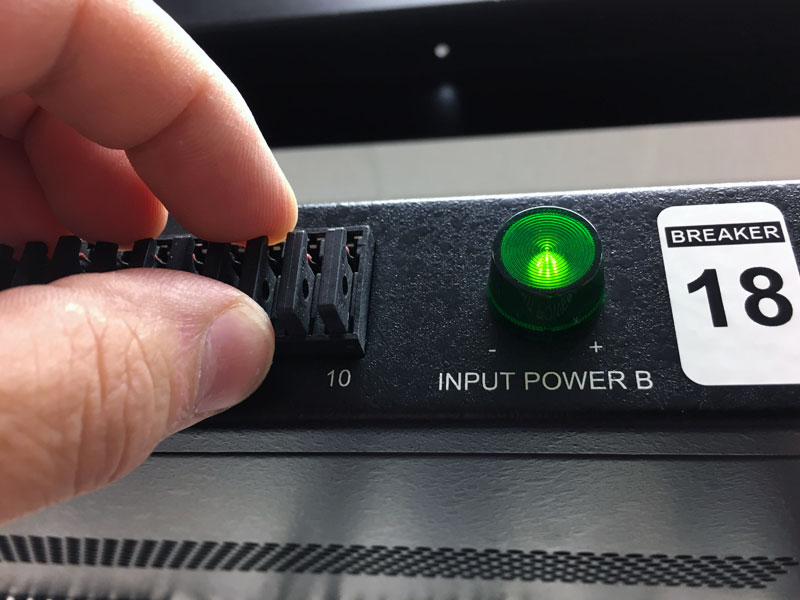
Wire the 24VDC site power (or any suitable power 12-24VDC source) to the power terminals on the indoor side of the surge protector. OBSERVE THE POLARITY.
Surge Protector Wiring Diagram
Prep the T:lan
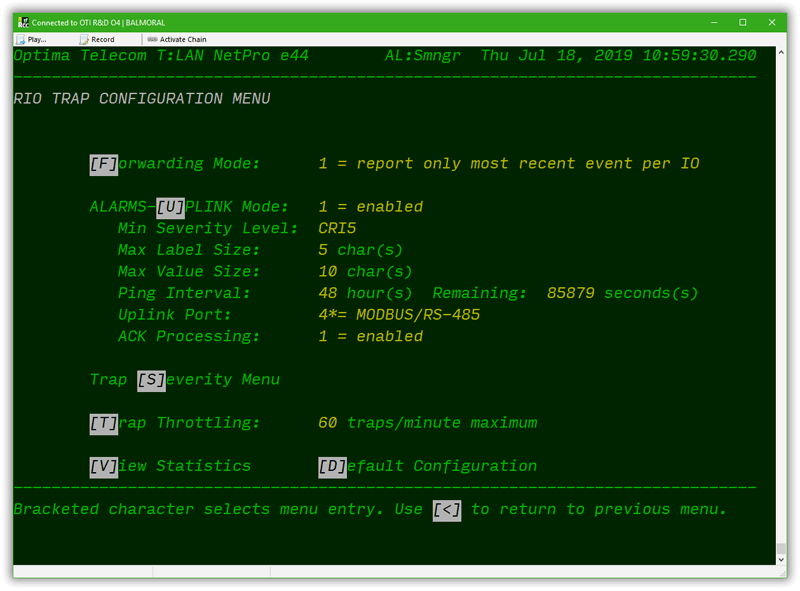
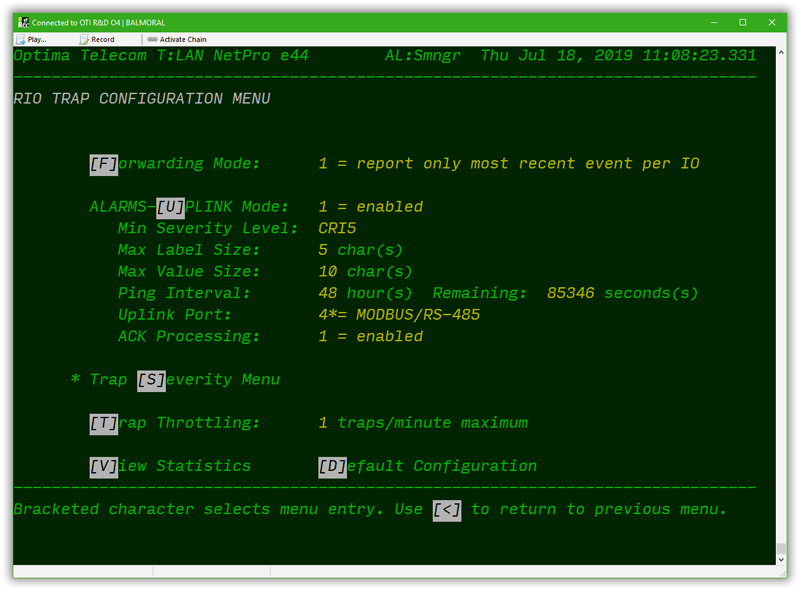
Enter the RIO TRAP CONFIGURATION MENU. Set the FORWARDING MODE to 1 = report only most recent event per IO. Next, initialize the ALARMS UPLINK mode as follows:
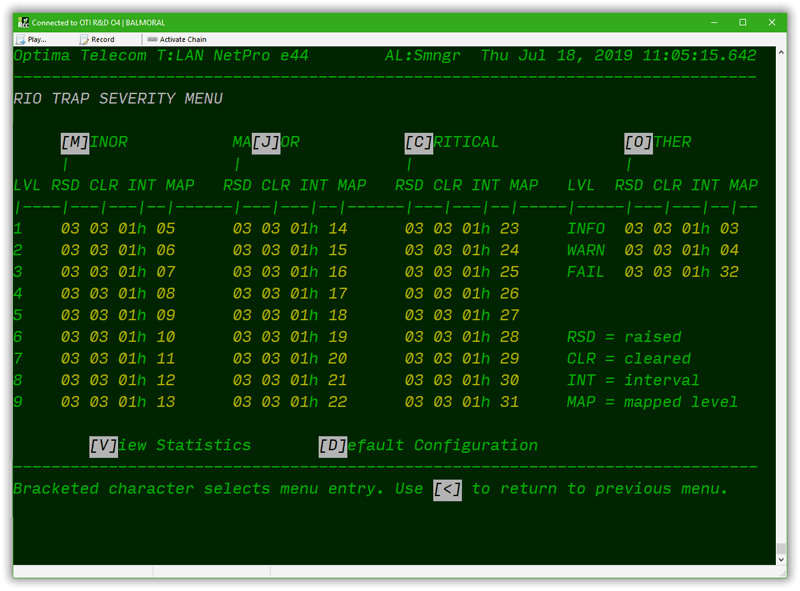
Enter the RIO TRAP SEVERITY MENU. Configure ALL severity levels for 3 repeats for raised, 3 repeats for cleared and 1h as the interval.
Use the [D]efaults command as a handy shortcut.
Return to the previous menu. Set the TRAP THROTTLING to 1 trap/minute.
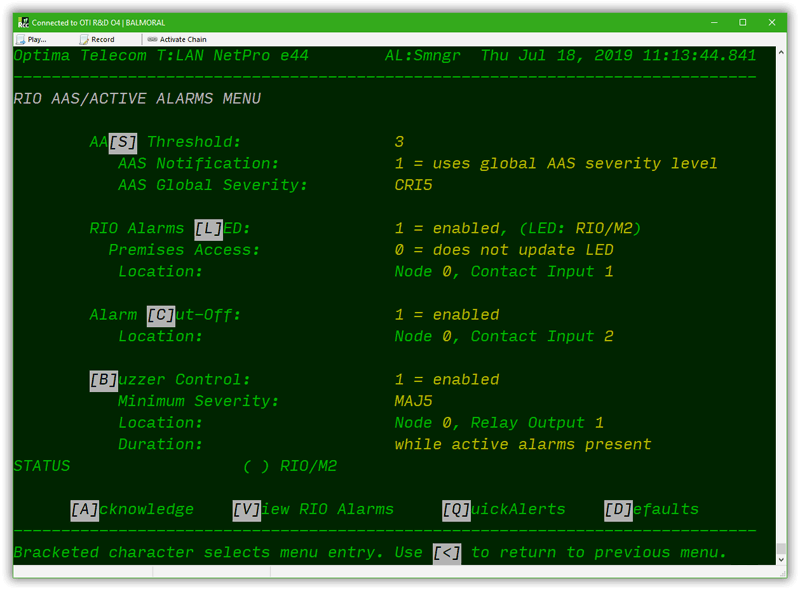
Go to the RIO AAS/ACTIVE ALARMS MENU. Set the AAS threshold to: 3.
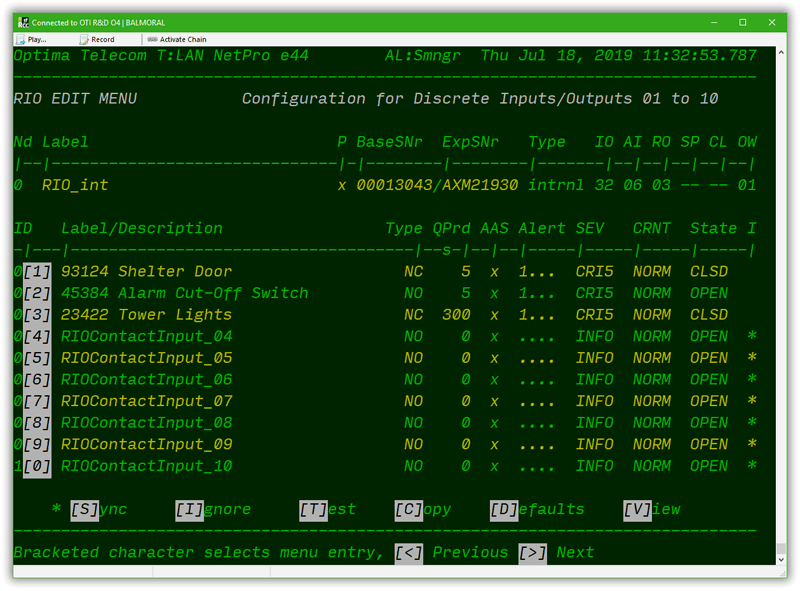
Go to the RIO EDIT MENU. Set all required ALARM I/O points above or at the severity level selected above. This serves as a filter. Any inputs defined with a severity level below the threshold will not be sent via the satellite link, preserving bandwidth.
For a complete list of all recommeded best practices, see this blog entry.
Configure the Rcs
NOTE: Make sure you have upgraded your RCS installation to the latest version (Version V1.11).
ALARMS UPLINK is a licensed option. Ensure your RCS licenses are current to be able to utilize all the features showcased below.
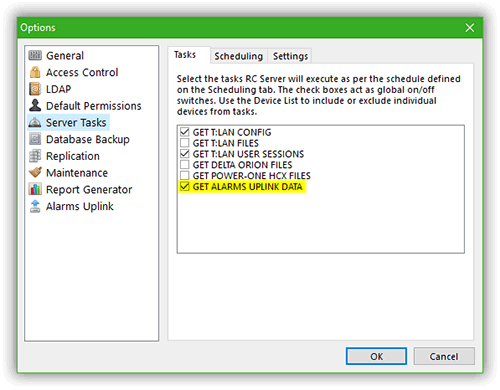
Log into the RCS Management Console. Bring up the TOOLS/OPTIONS/SERVER TASKS dialog. Make sure to enable the GET ALARMS UPLINK DATA option:
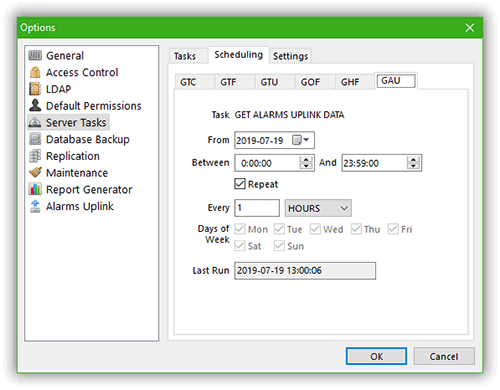
Click on the scheduling tab. Then set the schedule when the RCS should be checking the earth station (gateway) for any new alarm messages (inbound from the remote sites):
NOTE: Shorter repeat intervals will increase the frequency in which RCS will check for new inbound alarm messages received by the earth station. Shorter intervals will also create more network traffic and increased processing load on the RCS server/instance. Shortest interval: 1 minute.
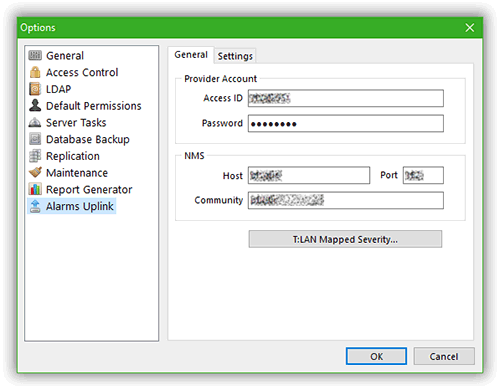
Next, click on the ALARMS UPLINK options dialog. Enter the required credentials to authenticate RCS with the earth station (as supplied by Optima). Do not forget to enter the NMS details where the RCS is forwarding the reconstituted SNMP traps/notifications to:
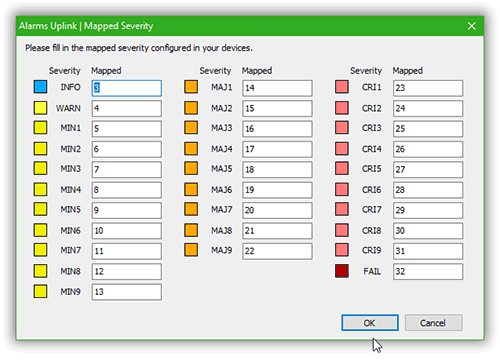
Click on T:LAN MAPPED SEVERITY if your company uses a custom severity mapping scheme. Enter the required re-mapping of the default Optima severity values (0-32) to those in use within your organization:
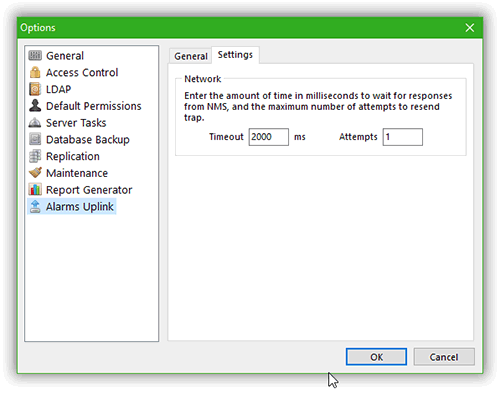
Click on the settings tab. Enter the maximum timeout and repeat attempts to be used by RCS when trying to relay the reconstituted SNMP traps/notifications to your NMS:
Close the options window and return to the main RCS Management Console window.
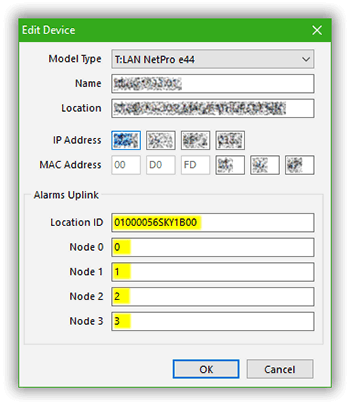
Locate your site in the device list. If the site already exists, enter the LOCATION ID (modem mobile ID), and the NODE 0 - 3 LABELS (TLAN RIO Node 0 - 3 names) in corresponding fields.
Several edit methods are available:- Press F2 or double-click to edit directly.
- Right-click and use EDIT on the context menu to bring up the edit dialog.
If the site/device does not yet exist, click ADD DEVICE and enter all relevant information.
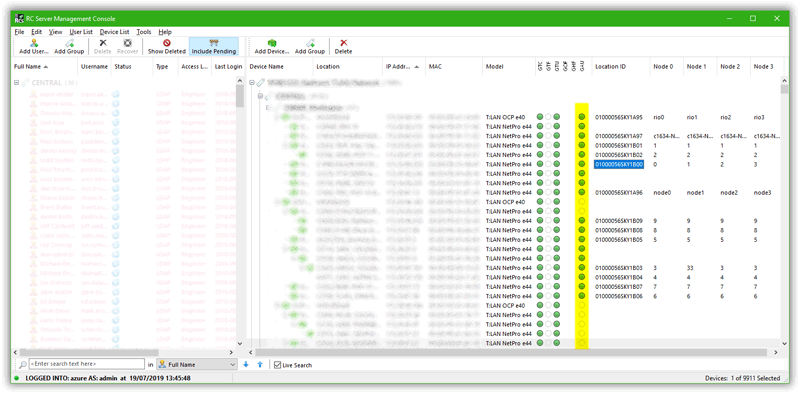
To finish the configuration, do not forget to enable GAU (Get ALARMS UPLINK Data) in the GAU column:
Testing
NOTE: Make sure the monthly data plan for your modem has been activated properly. This involves registering your modem via the satellite link provider's website. Simply enter the modem ID printed on the outside of the modem to ensure the modem will be recognized as soon as it powers up and registers with the satellite network for the first time.
Ac Power
Plug the AC Power Adapter into the AC outlet. Wait 3 minutes while the modem powers up.
AC Adapter
DC Power
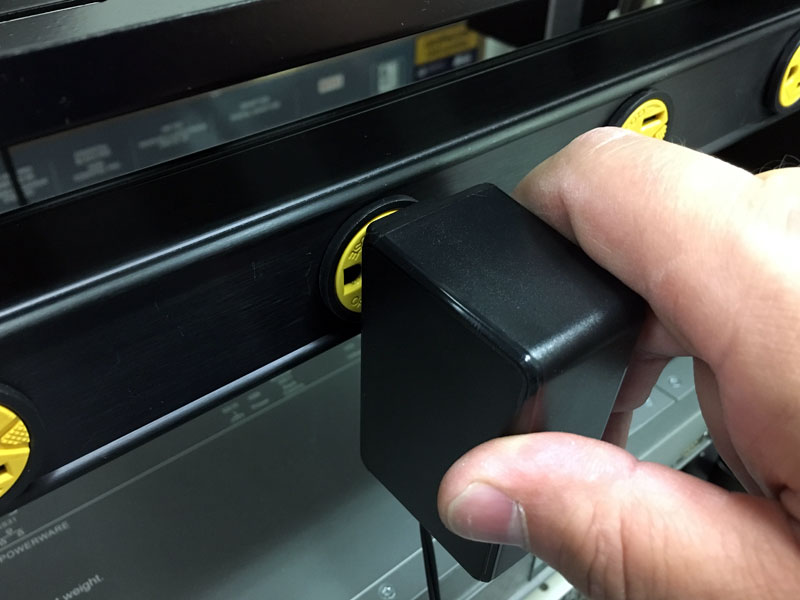
Plug the fuse into the proper fuse holder to supply DC power to the satellite modem. Wait 3 minutes while the modem powers up.
DC Fuse
Check Satellite Network Activation
Log into RCS Management Console. Verify that the modem has registered properly with the satellite network.
Check the status column of the corresponding site. Next to the satellite ID, the status column should show green. It will also indicate the time and date of the last power up event (as executed above) or the time and date of the last alarm message received from the sat modem.
TIP: Once powered up, the satellite modem will begin searching for a sufficiently strong satellite signal. Relocate the modem if this process does not complete successfully within 15 minutes.
Send the First Alarm
NOTE: To observe the exact behaviour of the ALARMS UPLINK mode:
Clear the RIO Event Log,
Clear the ALARMS UPLINK statistics,
before proceeding with the tests outlined below.
To accomplish this, log onto the T:LAN, then go to the INITIAL RIO SETUP/CONFIGURATION MENU and use the [C]lear command. Next, go to the RIO TRAP CONFIGURATION MENU, use the [V]iew command, then press ~ (TILDE: SHIFT + ` ).
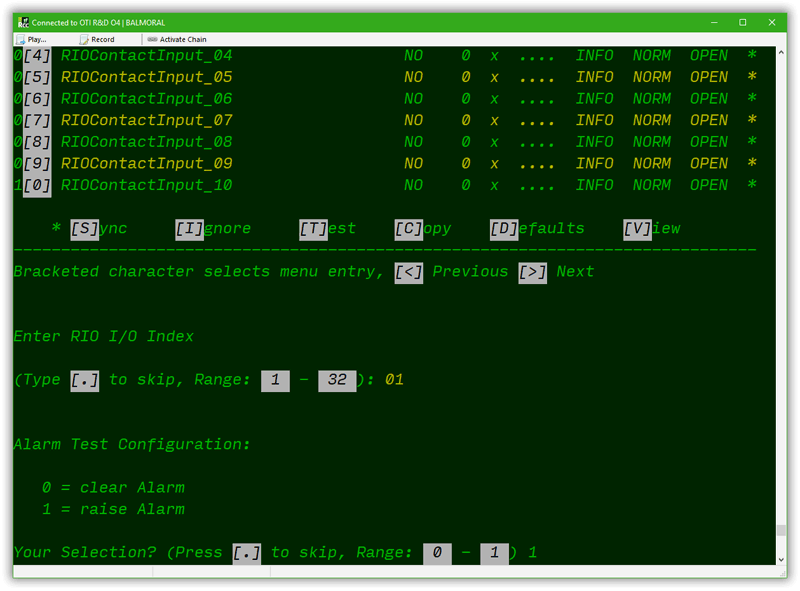
Log into the T:LAN. Go to the RIO EDIT MENU. Use the [T]est command to simulate an ALARM RAISED event. In our example we will raise the SHELTER DOOR OPEN (RIO Node 0, IO #1) alarm:
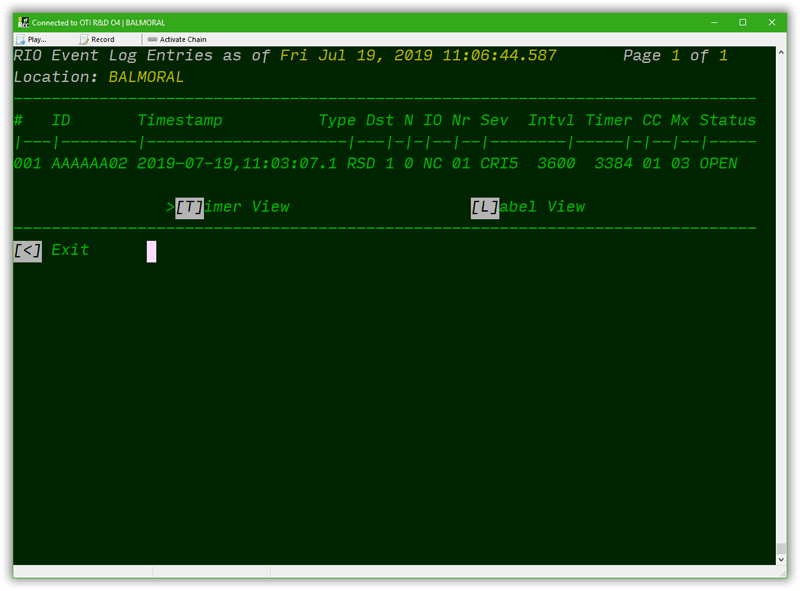
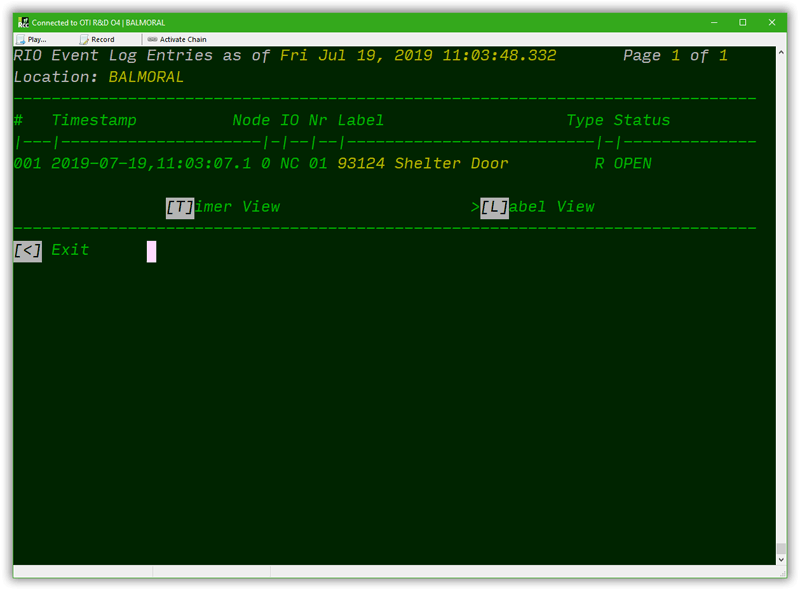
Now, navigate to the INITIAL RIO SETUP/CONFIGURATION MENU. Use the [V]iew command to verify that the manually triggered alarm shows up in the RIO EVENT LOG (RIO Node 0, IO #1):
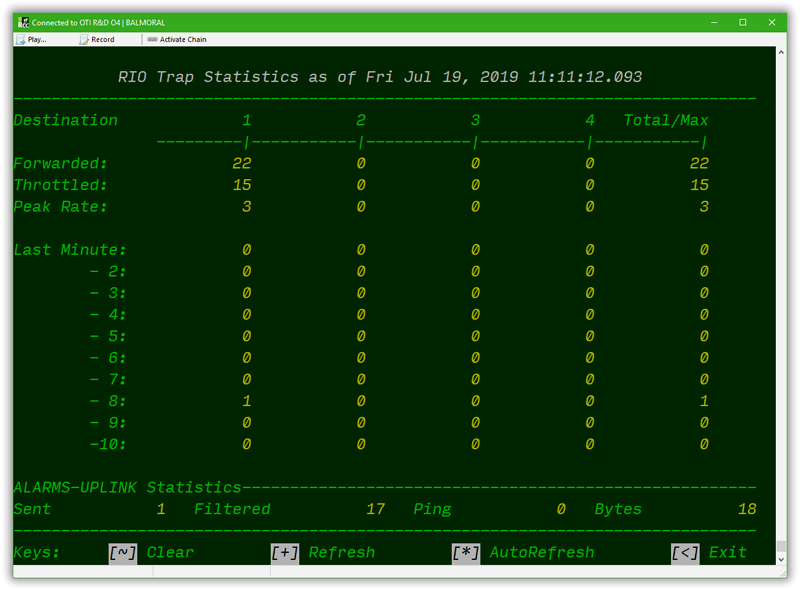
Next, go to the RIO TRAP CONFIGURATION MENU. Use the [V]iew command here to check the ALARMS UPLINK statistics:
The ALARMS UPLINK statistics are shown at the base of the screen above. Consult the following table for detailed explanations of each metric:
On-Screen
Unit
Description
Sent
Messages
Messages sent via the satellite link, since last clear
Filtered
Messages
Messages filtered/not sent, since last clear
Ping
Messages
Number of Keep-Alives sent, since last clear
Bytes
Bytes
Total number of bytes sent via satellite link, since last clear
NOTE: You can clear/reset the ALARMS UPLINK statistic counters any time by typing the TILDE character: ~ (SHIFT + ` ).
The T:LAN always records the most recent timestamp (time and date) when:
any of the logs, or
any of the statistics are cleared by the user
This can provide a valuable aid to ascertain the effectiveness of the currently selected settings. Use it to evaluate different strategies to reduce the amount of alarm messages being generated.
Clear the counters at the beginning of the month, then let the statistics run for 30 days. Log back into the T:LAN and check the recorded number of messages sent and bytes consumed. This will quickly help pinpoint sites that might require adjustments to the alarm limits to ensure the selected unit will not blow past the allotted monthly data budget in the future.
TIP: Use pooling to make the most of your monthly data budget. Some satellite link providers allow aggregating the monthly data volume of individual sites. Such shared data resources can be a boon to any site with a slightly higher data demand. Such sites will not incur overages as long as there is still enough capacity in the pooled/shared data plan.
Check the Reception at the Rcs End
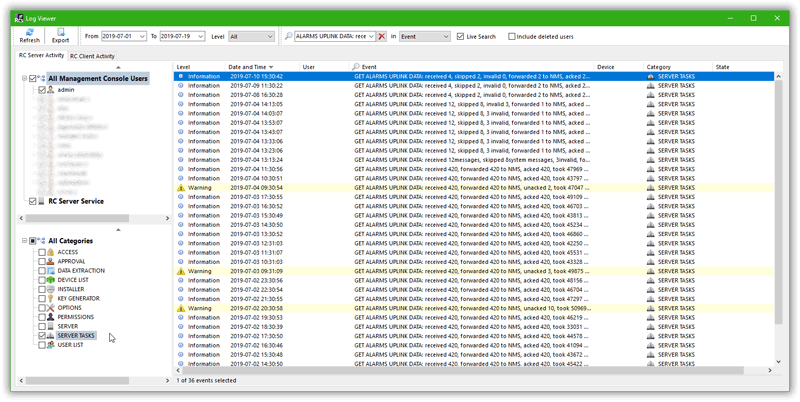
Log back into RCS Management Console. Call up the LOG VIEWER from the TOOLS MENU:
To drill down to the ALARMS UPLINK Log Entries, use the following filtering options:
CATEGORIES:
Deselect everything, except SERVER TASKS.
FROM:
select an appropriate time frame to capture the time/date when you sent your first alarm.
TO:
select the current date/time.
SEARCH:
Enter 'ALARMS UPLINK DATA: received' (without the quotes) in the search box.
IN:
Select the EVENT column.
TIP: Always use the filtering options to quickly drill down to the relevant log entries. Refer to the RCS User Guide for a detailed description of all available filtering options.
Wrap-up
Congratulations! You just sent your first alarm message via satellite.
To wrap up the test, log into the NMS in use at your organization and verify the proper reception of the alarm message you sent above.
NOTE: Reconstituted SNMP traps/notifications might all appear to originate from the same origin (RCS) due to the fact that they will all be sent from the same IP/MAC address.
While every effort was made to re-create the original SNMP traps/notifications as faithfully as possible, low level differences exist (link layer).
Each alarm will be generated with all the appropriate identification marks to make correlating the alarm to the original sender as easy and straightforward as possible.
Ultimately it is the responsibility of the receiving NMS to correctly associate the origin of an alarm trap/notification. Please contact Optima Support if your receiving NMS does not make proper use of the provided identification. We will work with you and your NMS vendor to ensure maximum compatibility.