
Making Alarm I/Os Smarter - Part 3
This series of blog posts highlights some of the more advanced features found in the new Optima NEXUS nano and RIO xR3 Remote Terminal Units (RTU).
The third installment provides a look at the advanced alarm timing capabilities common to both models. The article builds upon some of the topics already introduced in PART 1 and PART 2.
Severity Escalation
Overview
As previously stated, our goal was to offer improved alarm handling flexibility. Towards that end, all RIO xR3, and all NEXUS nano RTU alarm inputs can be programmed:
- with their own unique sets of alarm severities,
- with their own sets of phase timers,
- with their own sets of extended labels, to make alarms more descriptive.
We applied this extended feature set the discrete alarm inputs as well.
Traditionally, discrete inputs (contact inputs) usually only offer two states: open or closed. Depending on the user selection, either one can be defined as the normal/alarm state. Configuring an input as a NORMALLY OPEN type means, the input is open while NORMAL, and closed while in ALARM. Similarly, setting an input as NORMALLY CLOSED means, the input is considered to be in NORMAL state when the contact is closed, and in ALARM when the contact opens:
Consequently, most alarm handling devices on the market today only allow for two severity levels per input:
- NORMAL, and
- a user defined ALARM level.
Many times custom coding is required to extend these capabilities. Especially when an application demands more than flipping between these two basic states.
The Optima Difference
In our new RTUs, we now feature alarm severity level escalation even for discrete contact inputs. This expands the table shown above as follows:
The user can decide, individually per I/O, which of these severity levels will be enabled or disabled. Thereby, the utmost flexibility without the need for custom coding/scripting is achieved. The following section will go through setting up all of the parameters, step-by-step.
Parameters
Configuration
Select the MODULE from the drop-down list. Modules are identified by their function. For example: SYSTEM, MODBUS, enviroSENSOR, DCE, etc.
Select the PORT which carries the physical interface of the module identified above. This may be an internal bus (e.g. INTERNAL-1), or one of the generic serial ports (e.g. SERIAL-1, SERIAL-2, etc.).
Select the desired I/O from this group of inputs/outputs by choosing the correct I/O INDEX from the drop-down list.
RANGE: 1 up to the maximum number of I/Os available per selected MODULE.
Select the appropriate I/O TYPE from the drop-down list. Some I/Os can be configured to work in multiple modes. Choose the most appropriate one for each application.
NOTE: Some I/O modules only support a single I/O type. In which case the selection is pre-determined and grayed out.
Enter the I/O LABEL to uniquely identify the currently selected I/O. This is the base label of the I/O.
NOTE: BASE LABELS can later be extended with the BASE LABEL EXTENSIONS available at each enabled severity level to further aid in conveying the meaning of a specific alarm notification.
Analog Input Processing
Used to define all the parameters to process the raw analog inputs.

These parameters have been discussed in PART 1 of this series. They are used to scale and condition an analog input signal before being processed further.
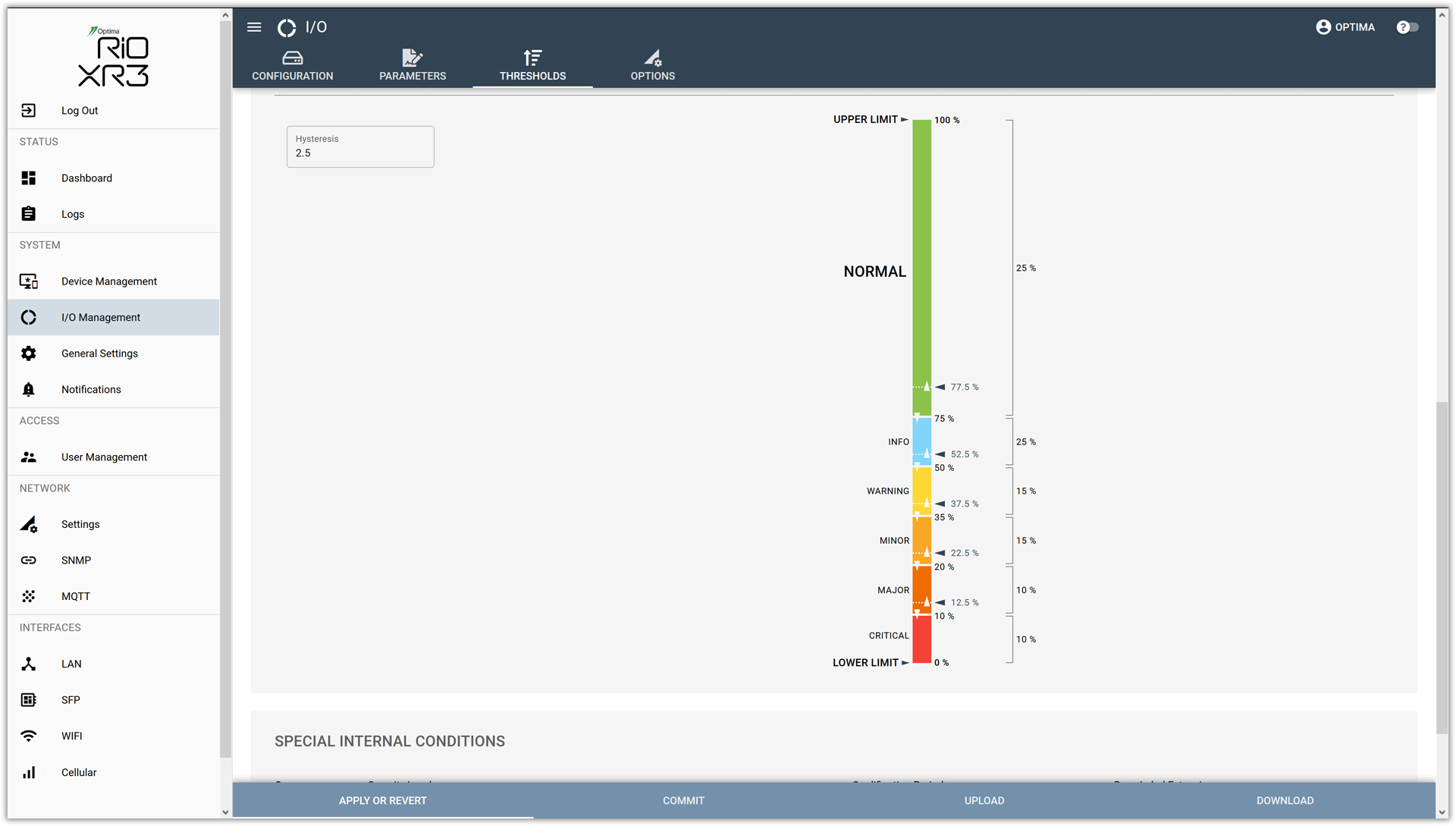
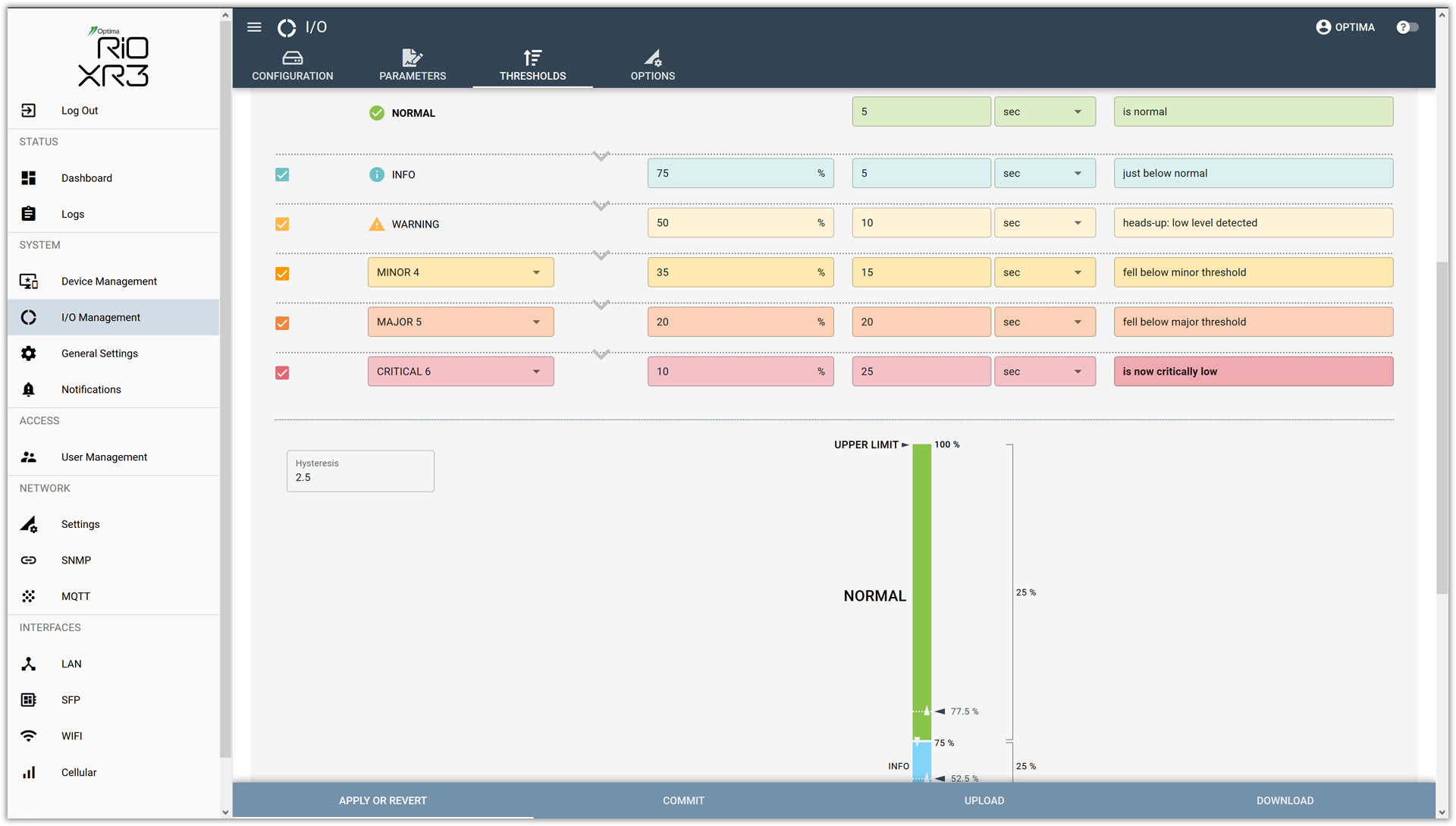
Thresholds / Severity
Once raw signals have been processed, and analog values are obtained, these will be compared against various user-defined thresholds. Discrete contact inputs bypass the first stage and are processed by this stage directly.

Refer to PART 2 for more information regarding these parameters.
Allows for refining an alarm message with a descriptive label when a specific threshold has been crossed (refer to PART 2 for details).
Enter the time (LEVEL TIMER) a signal must stay in a certain state (or above/below a specific threshold) before the RTU deems the event to be valid.
Choose the proper time units (ms, seconds, minutes, hours) for the LEVEL TIMER.
Once a signal has crossed into multiple alarm levels, the RTU with either issue only the highest level alarm (SNAP-BACK) or escalate through the levels as the corresponding timers run out (PROGRESSIVE). For discrete inputs, only the highest level alarm is issued by default (SNAP-BACK).
Enabling the QUICK TRIGGER MODE (check-mark set) ensures that the first alarm message will be sent immediately after a contact has changed its state. Only further escalation alarms adhere to the selected phase timers.
Contains optional settings. This blog post only highlights a small subset. Many more options exist and can be enabled for added functionality.

Enable the PROGRESSIVE / WITH SNAP-BACK option to turn on alarm severity escalation.
Once activated, the length of time an input stays in alarm may be used to escalate the alarm severity.
The user can pick any of the available ranges to be included or skipped as required. The user controls the speed in which each of the stages will be handled by specifying an appropriate duration using the PHASE PERIOD parameter.
Use the SNAP-BACK radio button to influence how the I/O will return to normal once the alarm condition has ended:
Without SNAP-BACK, the input will progressively fall through each of the defined severity levels, just in reverse compared to the order in which they were taken when the alarm was active.
With SNAP-BACK enabled, the input will immediately return to NORMAL once the alarm phase has ended.
Switches between STANDARD TRIGGER and QUICK TRIGGER options.
STANDARD TRIGGER mode: I/O must have cleared threshold for the minimum duration specified by the user selected Qualification Period before a transition is declared.
QUICK TRIGGER mode: I/O transition is reported immediately upon crossing of threshold. The Qualification Period starts after the transition report has been issued and will be allowed to complete before new transitions will be accepted.
Example
This example demonstrates how to add some advanced functionality to one of the most common inputs: the door contact.
Preparation
- Navigate to the I/O MANAGEMENT entry in the main MENU (on the left hand side of the screen).
- Select the CONFIGURATION tab.
- Choose HYBRID INPUTS from the MODULE drop down.
- Select a suitable spare I/O using the I/O INDEX drop-down selector (3 in this example).
- Set the I/O TYPE to NORMALLY CLOSED.
- Enter "Main Access Door" or a similar text as the I/O LABEL.
Your screen should now look similar to this:

Defining the Input
Select the THRESHOLDS tab. Then configure each of the parameters as follows:
QUALIFICATION PERIOD: 250ms
UPPER LIMIT: 24
LOWER LIMIT: 0
ALARMS THRESHOLD: 8
HYSTERESIS: 2
UNIT STRING: Vdc
Your screen should now look similar to this:
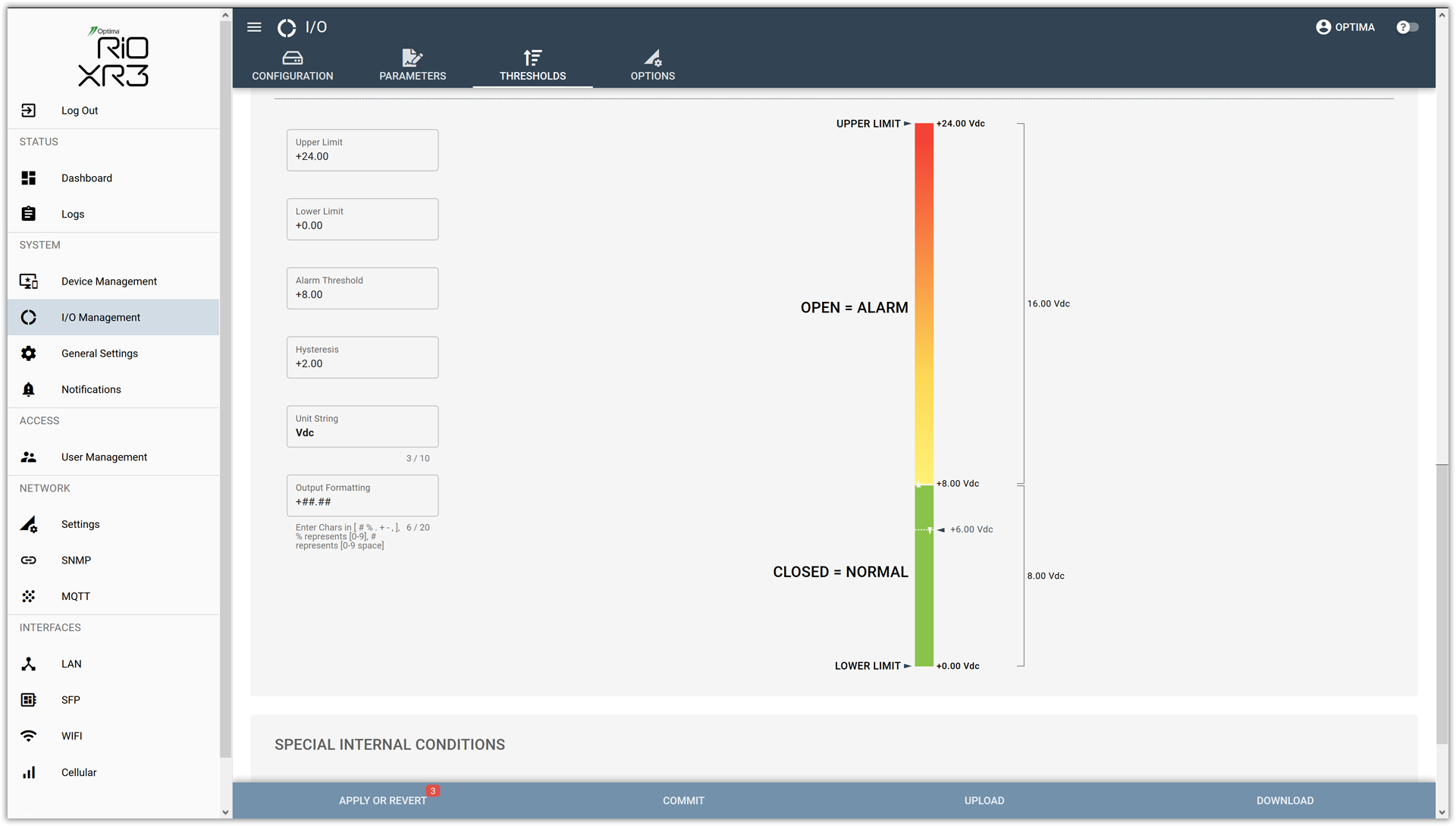
Result:
So far we set up the selected input as a discrete contact input, normally closed. The above listed settings together with a standard door contact wiring ensures that:
- while the (door) contact is closed, the signal level will be pulled to ground, and
- when the door is opened, the contact opens and the input biasing will pull the signal level up to +24Vdc.
The selected alarm threshold and hysteresis will have the following effect:
- while in NORMAL, the input will transition to the ALARM condition as soon as the signal level rises above the alarm threshold of 8Vdc.
- it will only return to the NORMAL condition when the signal level falls below 6Vdc.
This is just one way of configuring the input. Many other variations are possible. Using a qualification timer of 250ms and a hysteresis of 2Vdc will help keeping the input from 'flapping' in case the signal level would ever hover close to the selected alarm threshold.
Setting Up The Severity Levels
On the THRESHOLDS tab, enable each of the severity levels and configure them as follows:
| CRITICAL LEVEL: | CRITICAL7 | - | open for >8h. Dispatch tech. |
| MAJOR LEVEL: | MAJOR6 | 3 h | open for >5h. Notify tech. |
| MINOR LEVEL: | MINOR5 | 3 h | open for more than 2h. |
| WARNING LEVEL: | - | 1 h | has been ajar for more than 1h. |
| INFO LEVEL: | - | 1 h | is open. |
| NORMAL LEVEL: | - | - | is closed. |
Your screen should now look similar to this:
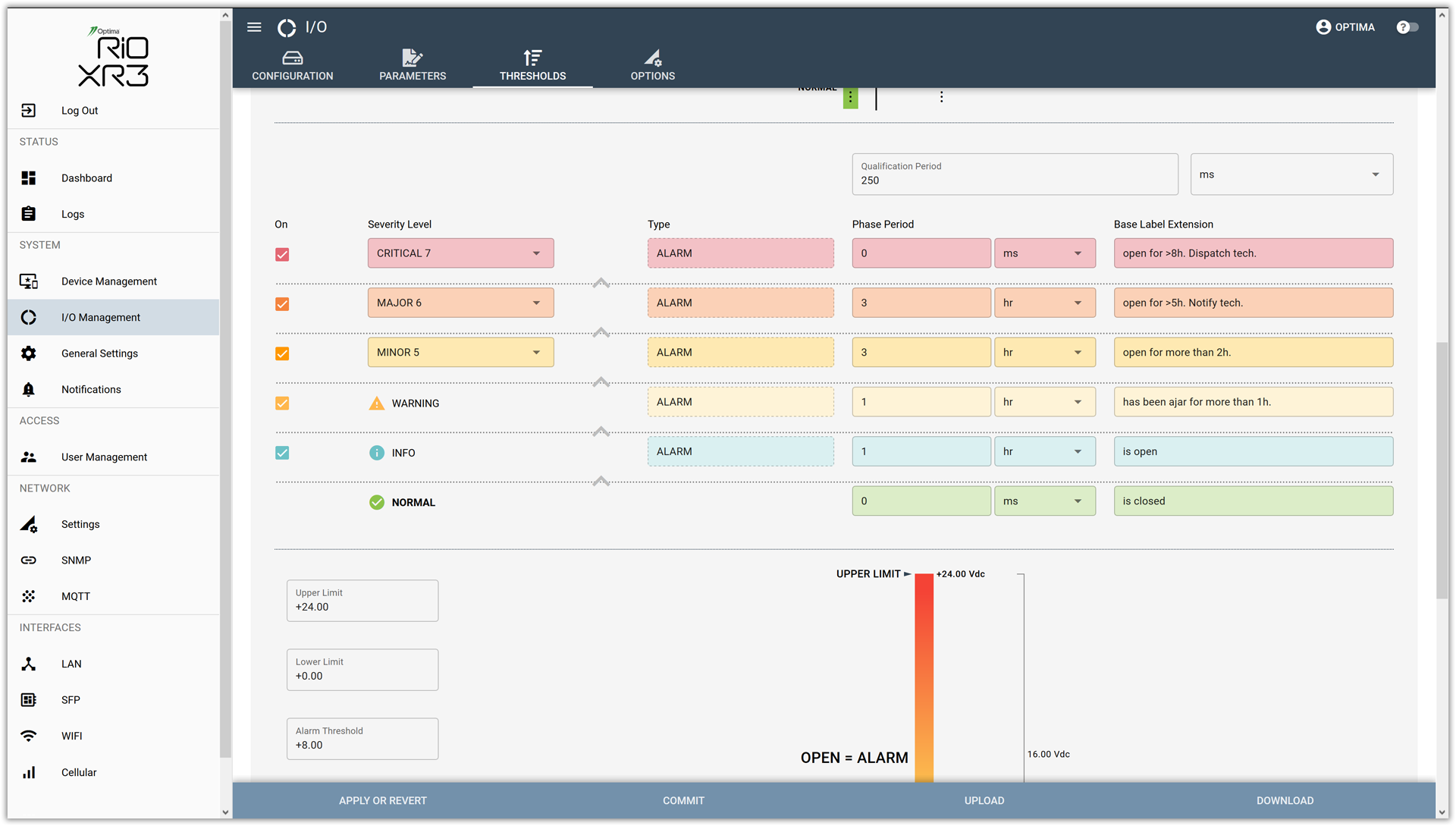
RESULT:
The selected PHASE PERIODS will help stagger the different severity levels in case the door contact remains in alarm for the ever longer periods of time. If the door is only opened briefly, the unit will send out one INFO notification once the door opens, and a NORMAL notification when the door closes again.
Should the door remain open for more than one hour, then the WARNING notification will be generated.
If the door is still open after 2 hours, then the MINOR alarm notification will be sent out.
After 5 hours (1h + 1h + 3h) the MAJOR alarm notification will be generated.
And finally after 8 hours (1h + 1h + 3h + 3h) the CRITICAL alarm notification will be sent out.
No further alarm messages will be sent out after that.
If the door closes at any time, the input will immediately transition back to NORMAL (due to selecting the PROGRESSIVE + SNAP-BACK option).
Here are the labels (consisting of the BASE LABEL + BASE LABEL EXTENSION) which will be sent along with each notification:
| BASE LABEL: | Main Access Door |
| NORMAL: | Main Access Door is closed. |
| INFO: | Main Access Door is open. |
| WARNING: | Main Access Door has been ajar for more than 1h. |
| MINOR: | Main Access Door open for more than 2h. |
| MAJOR: | Main Access Door open for >5h. Notify tech. |
| CRITICAL: | Main Access Door open for >8h. Dispatch tech. |
Proper configuration can also be verified by checking the resulting graph, which updates in real time with any user edits being carried out:
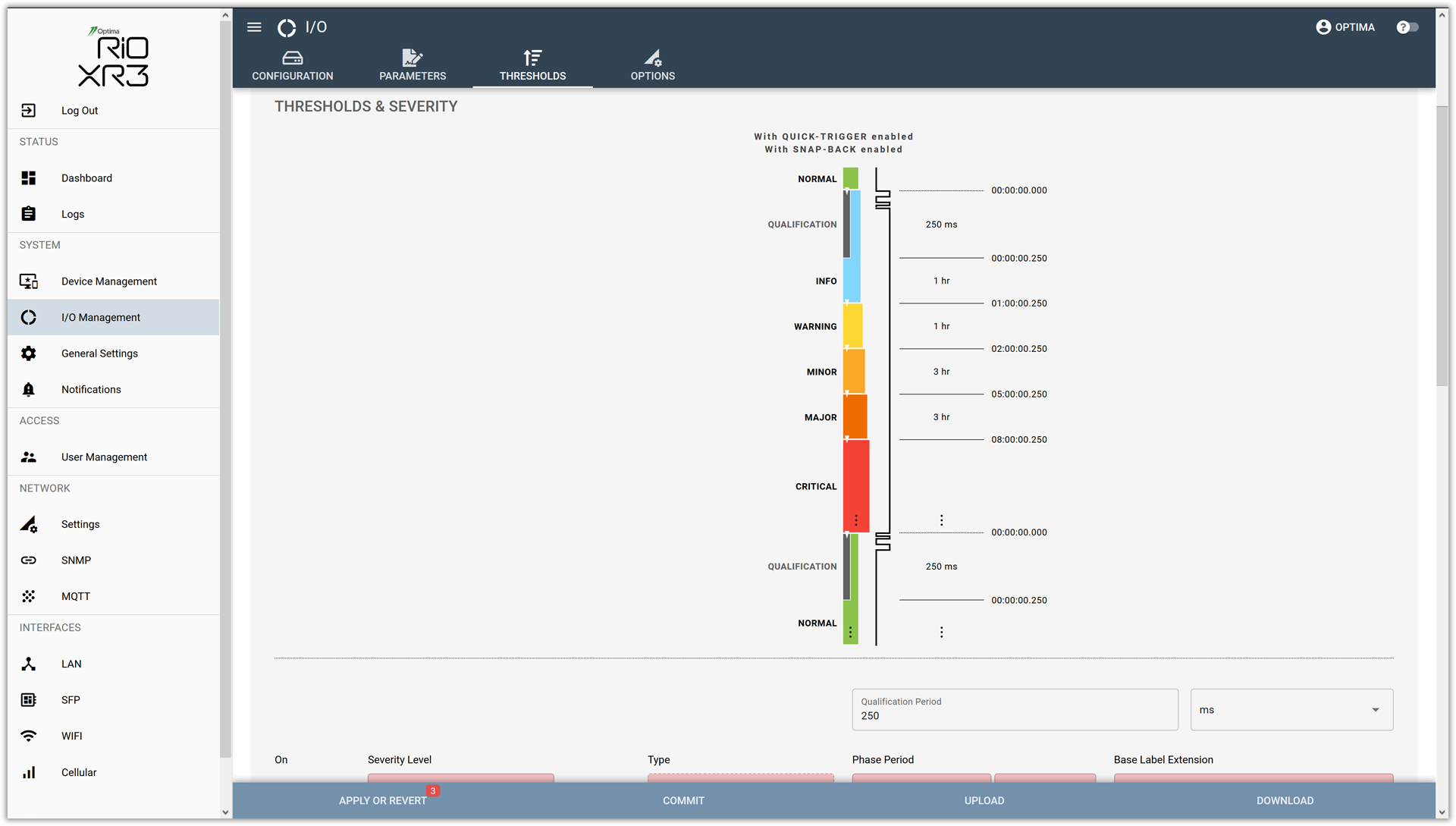
Note that the graph lists the timestamps on the right hand side. They are a handy tool to verify when each event will take place.
Summary
The flexibility offered by the NEXUS nano and RIO xR3 analog inputs processing stages allow even complex operations to be carried out on an input signal without the usual need for custom coding or scripting. The example above clearly highlights the power of the available parametric interface. The web-based Optima GUI turns even advanced setups with escalating severity settings into straightforward point-and-click operations.
Outlook
The upcoming 4th installment in this series will focus on more of the advanced analog input processing capabilities found in the RIO xR3 and NEXUS nano. Stay tuned.
Ralf Doewich
Optima Tele.com, Inc.